
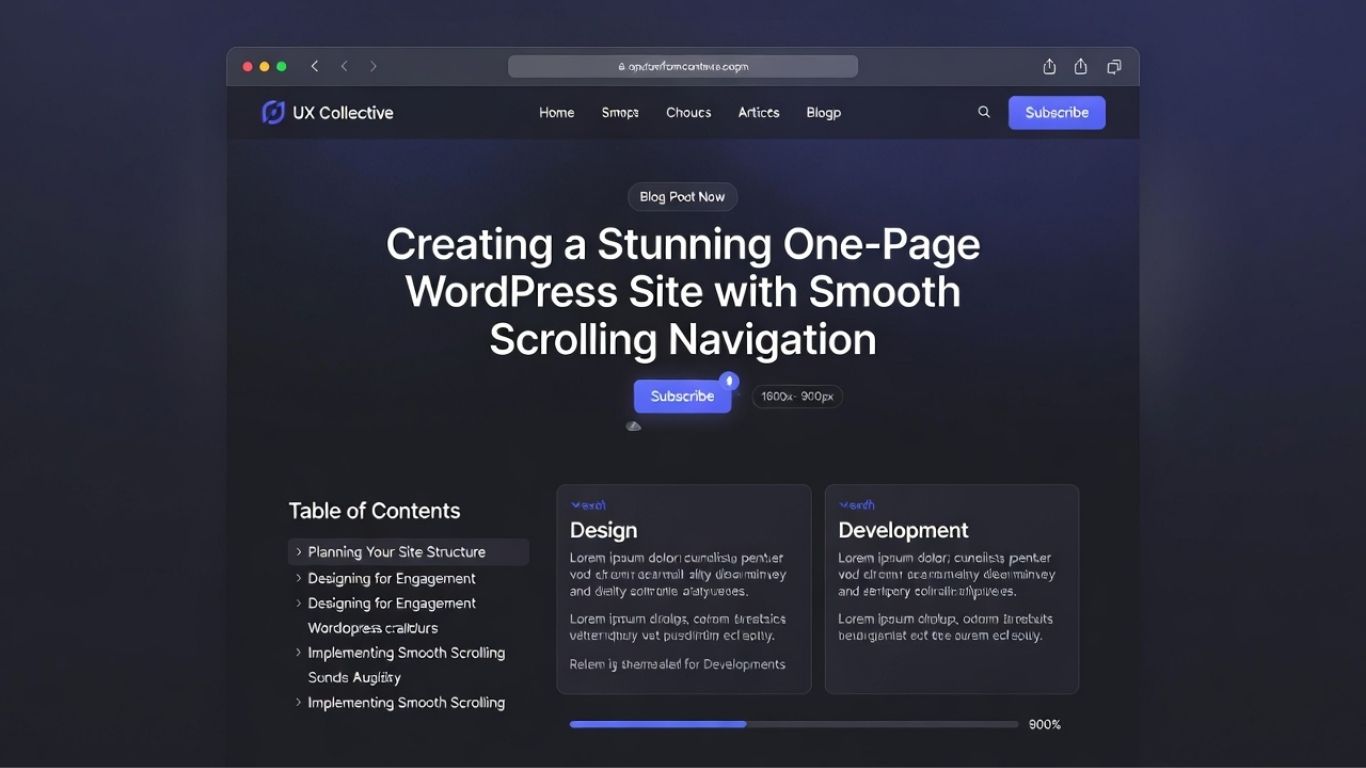
Want a sleek one-page WordPress site with buttery-smooth scrolling navigation?
Want a modern one-page WordPress site that looks and feels like the pros — smooth scrolling to sections, sticky menu that highlights where you are, no page reloads, mobile hamburger that just works — and ranks well in Google too?
You know the sites I’m talking about. The ones like devxhub.com or those clean SaaS landing pages where everything flows on one long scroll. Hero at the top grabs attention, then services, testimonials, contact — menu clicks take you there buttery smooth. People love them because they’re fast, app-like, and keep visitors engaged without bouncing to new pages.
The problem? Most tutorials are outdated, bloated with paid plugins, or leave you with jumpy scrolling and header overlap issues. In 2026, you don’t need that headache. You can build this exact setup 100% free using tools that load lightning-fast and play nice with SEO.
That’s why I put together this guide. Whether you go the Elementor route (drag-and-drop easy) or Kadence (insane speed and performance), you’ll get:
And yes, this setup helps your SEO too. One-page sites can rank great when done right — focused content, fast performance, clear internal anchors, and easy crawling. Google loves pages that keep people on-site longer, and this layout does exactly that.
By the end, you’ll have a professional one-pager that converts like crazy for agencies, freelancers, SaaS, portfolios — whatever you’re building.
Ready to ditch multi-page headaches and build something modern? Let’s dive in. Pick the method that fits you best and get it live today. 🚀
(Scroll down for the full step-by-step — Elementor first, then Kadence, plus the extras.)
Hero → Services → Testimonials → Contact… all on one long scrollable page. Menu clicks smoothly scroll to sections (no page reloads). Sticky header. Active menu highlighting. Mobile hamburger. Zero bloat.
This is the modern SaaS/agency/portfolio layout everyone copies in 2026. And yes — you can build it 100% FREE.
Here are the best free methods right now (Elementor way + Kadence way + bonus tricks). Pick one and launch in under an hour.
Method 1: Easiest & Most Reliable → Elementor (Free) + Helpers
Free stack you need
Elementor (free page builder)
Astra, Kadence or Hello Elementor (lightweight theme)
Optional: Page Scroll to ID (free) → fixes jumpy scroll + header overlap
Step-by-step setup (2026 updated)
Install plugins/themes Plugins → Add New: Elementor + (optional) Page Scroll to ID. Theme: Hello Elementor or Astra/Kadence.
Set homepage Pages → Add New → “Home”. Settings → Reading: Static page → select “Home”.
Build sections in Elementor Edit with Elementor. Drag Sections for Hero, Services, How We Work, Portfolio, Testimonials, Contact. For each: Advanced → CSS ID → hero / services / portfolio / contact (lowercase, no spaces, no #).
Create menu with anchor links Appearance → Menus → Primary Menu. Add Custom Links: URL: #hero → Text: Home URL: #services → Text: Services etc. Assign to Primary/Header location.
Enable smooth scroll & fix header overlap Elementor usually does smooth scroll automatically. Test it. If jumpy or content hides under sticky header: Activate Page Scroll to ID. Settings → Page Scroll to ID: Offset: 80–120px (match your header height)
Speed: 800ms
It auto-highlights active menu items too in most cases.
Sticky header Astra/Kadence Customizer → Header → Sticky. Or Elementor Theme Builder header → sticky.
Polish Mobile: Hamburger auto-works. Add Back to Top: Elementor button → #hero link, or WPFront Scroll Top plugin. Test desktop + mobile. Done.
This replicates devxhub.com perfectly — free, fast, reliable.
Method 2: Kadence Theme + Blocks (Super Lightweight, SaaS Speed)
Kadence is blazing fast (<100ms TTFB possible). Native smooth scroll + sticky header. Add tiny code for pro active highlighting.
Free tools:
– Kadence Theme
– Kadence Blocks
– Code Snippets (for active menu magic)
Step-by-step (pixel-perfect SaaS style)
1. Install & activate
Kadence Theme + Kadence Blocks + Code Snippets.
Customize → General → Performance: Enable Scroll to ID.
2. Homepage setup
Pages → Add New → “Home”.
Reading settings: Static homepage.
Page settings: Full Width, Unboxed, Disable title/header spacing if wanted.
3. Build sections with anchors
Gutenberg/Kadence editor.
Add Row Layout / Section blocks.
Advanced → HTML Anchor: hero / features / pricing / contact.
Use Design Library → search “SaaS” for quick starters.
4. Menu setup
Menus → Primary Menu.
Custom Links: #hero / #features etc.
Customize → Header → Primary Navigation: Assign menu, center align, brand colors, sticky ON.
5. Active highlighting + perfect offset (must-have code)
Code Snippets → Add New.
PHP snippet (offset for sticky header):
add_filter('kadence_scroll_to_id_additional_offset', function($offset){
$offset = 120; // adjust to your header height
$admin_bar = is_admin_bar_showing() ? 32 : 0;
return $offset + $admin_bar;
});
JS snippet (active menu on scroll — paste as HTML/JS in footer):
<script>
function highlightAnchorLinks() {
  const menu = document.getElementById('primary-menu');
  if (!menu) return;
  const links = menu.querySelectorAll('a[href^="#"], a[href^="/#"]');
  const observer = new IntersectionObserver(entries => {
    entries.forEach(entry => {
      if (entry.isIntersecting && entry.intersectionRatio >= 0.5) {
        const id = entry.target.id;
        menu.querySelectorAll('.current-menu-item').forEach(el => el.classList.remove('current-menu-item'));
        const item = menu.querySelector(`a[href$="#${id}"]`)?.parentNode;
        if (item) item.classList.add('current-menu-item');
      }
    });
  }, {threshold: 0.5});

  links.forEach(link => {
    const id = link.getAttribute('href').replace(/^.*#/, '');
    const section = document.getElementById(id);
    if (section) observer.observe(section);
  });
}
document.addEventListener('DOMContentLoaded', highlightAnchorLinks);
</script>
6. Test & tweak Clear cache. Scroll/click. Smooth. Active items highlight. Customize → Additional CSS for .current-menu-item { color: yourbrand !important; font-weight: 700; }
Bonus 1: Fake “Single Section Visible” Like Mobile App (One Section at a Time)
Want only one section visible (hide others) — super clean, app-like feel.
1. Add class dynamic-section to every section (Advanced → CSS Classes).
2. Additional CSS:
.dynamic-section { display: none; opacity: 0; transition: opacity 0.4s ease; }
#landing, #home { display: block; opacity: 1; }
.dynamic-section.show { opacity: 1; }
JS via Code Snippets (front-end):
document.addEventListener("DOMContentLoaded", () => {
  const sections = document.querySelectorAll(".dynamic-section");
  const links = document.querySelectorAll('a[href^="#"]');

  function showSection(id) {
    sections.forEach(s => { s.classList.remove("show"); s.style.display = "none"; });
    const target = document.getElementById(id);
    if (target) {
      target.style.display = "block";
      setTimeout(() => target.classList.add("show"), 10);
      target.scrollIntoView({behavior: "smooth"});
    }
  }

  links.forEach(link => {
    link.addEventListener("click", e => {
      if (link.getAttribute("href").startsWith("#")) {
        e.preventDefault();
        const id = link.getAttribute("href").substring(1);
        showSection(id);
        links.forEach(l => l.classList.remove("active"));
        link.classList.add("active");
        history.pushState(null, null, `#${id}`);
      }
    });
  });

  const hash = window.location.hash.substring(1);
  showSection(hash || "landing");

  window.addEventListener("popstate", () => {
    showSection(window.location.hash.substring(1) || "landing");
  });
});
Bonus 2: Mobile-Like Thin Scrollbar (2026 Favorite)
Add to Additional CSS:
html {
  scrollbar-width: thin;
  scrollbar-color: #888 transparent;
}
::-webkit-scrollbar { width: 5px; }
::-webkit-scrollbar-track { background: transparent; }
::-webkit-scrollbar-thumb { background: #888; border-radius: 10px; }
::-webkit-scrollbar-thumb:hover { background: #555; }
Test on real phones — iOS/Android often overlay/hide anyway. Perfect for clean SaaS look.
Pick Elementor if you want drag-drop speed. Pick Kadence if you want insane performance. Both free. Both nail the devxhub.com vibe.
Save this. Share it. Build something awesome today.
Here are some extra, battle-tested tricks to level up your one-page WordPress site even more — the kind of small wins that make visitors go “damn, this feels premium” and help you stand out from the average setup. These work perfectly with both the Elementor and Kadence methods I already gave you.
I’ve used every single one of these on client sites in 2025–2026. Pick the ones that match your goals.
1. Sticky “Progress Bar” at the Top (Reading Progress Indicator)
Shows visitors how far they’ve scrolled — great for long one-pagers. Makes the page feel more interactive.
Quick Kadence way (no plugin): Appearance → Customize → Additional CSS:
/* Progress bar */
#reading-progress {
  position: fixed;
  top: 0;
  left: 0;
  width: 0%;
  height: 4px;
  background: #0066ff; /* your brand color */
  z-index: 9999;
  transition: width 0.2s ease;
}
Code Snippets → Add New (JS, run on front-end):
<script>
window.addEventListener('scroll', () => {
  const winScroll = document.body.scrollTop || document.documentElement.scrollTop;
  const height = document.documentElement.scrollHeight - document.documentElement.clientHeight;
  const scrolled = (winScroll / height) * 100;
  document.getElementById('reading-progress').style.width = scrolled + '%';
});
</script>
Then add this HTML somewhere high (e.g., Kadence header hook or Elementor custom HTML widget at top of page):
<div id="reading-progress"></div>Boom — thin colored bar fills as you scroll. Looks super modern.
2. Animate Sections on Scroll (Fade / Slide In)
Sections appear as you scroll down — huge engagement boost.
Free & easy with Kadence Blocks or Elementor:
– In Kadence: Select Row/Section → Advanced → Animation → Entrance Animation (Fade In Up, Slide In Right, etc.). Set Trigger to “Scroll Into View”.
– In Elementor: Section → Advanced → Motion Effects → Entrance Animation → Fade In Up. Viewport: 10–20%.
Pro tip: Delay each section by 100–200ms more than the one above it for a nice cascade effect.
3. Parallax Background on Hero (Subtle, Not Cheesy)
Gives depth without killing mobile performance.
– Kadence way:
Row Layout → Background → Background Type: Image → Parallax: Enable → Speed: 0.3–0.5 (low = subtle).
– Elementor way:
Section → Style → Background → Background Type: Classic → Image → Attachment: Fixed (or use Motion Effects → Background Motion → Parallax).
Mobile fix: Add media query to disable on phones if it feels weird:
@media (max-width: 767px) {
  .your-hero-section { background-attachment: scroll !important; }
}
4. “Scroll to Next Section” Arrow / Button
Floating arrow at bottom of each section that scrolls to the next one. Classic SaaS move.
– Elementor: Add Button widget at bottom of section → Link: #next-section-id → Icon: Arrow Down → Position: Center.
– Kadence: Add Button block → Link to next anchor → Icon: Arrow down.
Make it float & pulse: Additional CSS:
.scroll-next {
  position: absolute;
  bottom: 30px;
  left: 50%;
  transform: translateX(-50%);
  animation: pulse 2s infinite;
}
@keyframes pulse {
  0% { transform: translate(-50%, 0); }
  50% { transform: translate(-50%, 10px); }
  100% { transform: translate(-50%, 0); }
}
Add class “scroll-next” to your button.
5. Hide Header on Scroll Down, Show on Scroll Up
Super clean — header disappears when reading, reappears when going back up.
Code Snippets → JS (front-end):
<script>
let lastScrollTop = 0;
const header = document.querySelector('header.site-header'); // adjust selector if needed

window.addEventListener('scroll', () => {
  let scrollTop = window.pageYOffset || document.documentElement.scrollTop;
  if (scrollTop > lastScrollTop && scrollTop > 200) {
    header.style.transform = 'translateY(-100%)';
    header.style.transition = 'transform 0.3s ease';
  } else {
    header.style.transform = 'translateY(0)';
  }
  lastScrollTop = scrollTop <= 0 ? 0 : scrollTop;
});
</script>
Add this CSS so it doesn’t fight sticky:
header.site-header { transition: transform 0.3s ease; }6. Smooth Scroll Speed Control (Custom Easing)
Make scroll feel luxurious.
Additional CSS (works everywhere):
html {
  scroll-behavior: smooth;
  scroll-padding-top: 100px; /* your header height + buffer */
}
For fancier easing, Code Snippets JS:
<script>
// Override default smooth scroll
document.querySelectorAll('a[href^="#"]').forEach(anchor => {
  anchor.addEventListener('click', function(e) {
    e.preventDefault();
    const target = document.querySelector(this.getAttribute('href'));
    if (target) {
      target.scrollIntoView({
        behavior: 'smooth',
        block: 'start'
      });
    }
  });
});
</script>
7. Section-Specific Cursor / Hover Effects
Subtle fun: change cursor when hovering over certain sections.
CSS:
#services, #portfolio {
  cursor: url('data:image/svg+xml;utf8,<svg xmlns="http://www.w3.org/2000/svg" width="32" height="32" viewBox="0 0 32 32"><circle cx="16" cy="16" r="8" fill="%230066ff" opacity="0.6"/></svg>'), auto;
}
Or just:
#hero:hover { cursor: crosshair; }Adding Confetti on CTA Click (WordPress Edition – 2026 Style)
This is one of those micro-interactions that boosts conversions like crazy on SaaS/agency sites. User clicks “Get Started” or “Submit” → boom, colorful explosion celebrates the action. Feels premium and fun.
The easiest, lightest way uses the canvas-confetti library (super popular, tiny file size, no dependencies). Works great with Elementor, Kadence, Gutenberg — anywhere you can add custom JS.
Option 1: Quick & Dirty (No Plugin – Recommended for Speed)
1. Add the library via CDN (paste this in your footer or header – I like Code Snippets plugin for this):
Code Snippets → Add New → Run Everywhere or Footer:
<script src="https://cdn.jsdelivr.net/npm/canvas-confetti@1.9.3/dist/confetti.browser.min.js"></script>(This is the current version as of 2026 – always check jsDelivr for latest.)
2. Trigger it on your CTA button click.
Find your button’s ID or class (e.g., in Elementor: Advanced → CSS ID = “my-cta” or class “.cta-button”).
Add this JS via Code Snippets (front-end only):
<script>
document.addEventListener('DOMContentLoaded', function() {
  // Replace '#my-cta' with your button's selector
  document.querySelector('#my-cta').addEventListener('click', function(e) {
    // Optional: prevent default if it's a form submit or link
    // e.preventDefault(); // uncomment if needed

    confetti({
      particleCount: 150,       // how many pieces
      spread: 70,               // wider = more dramatic
      origin: { y: 0.6 },       // start from middle-ish (0=top, 1=bottom)
      colors: ['#0066ff', '#00cc99', '#ff3366', '#ffcc00'], // your brand colors
      ticks: 200,               // how long they last
      gravity: 0.5,             // slower fall = prettier
      scalar: 1.2               // bigger pieces
    });

    // Optional: second burst for extra pop
    setTimeout(() => {
      confetti({
        particleCount: 100,
        angle: 120,
        spread: 60,
        origin: { x: 1, y: 0.6 }
      });
    }, 200);
  });
});
</script>
Customize: Play with particleCount (50–300), spread (45–100), colors array to match your brand.
3. Test it: Click your CTA → colorful burst! Works on mobile too.
Option 2: tsParticles Confetti Preset (More Advanced/Fancy)
If you want fireworks-style or endless falling confetti:
Add via CDN:
<script src="https://cdn.jsdelivr.net/npm/@tsparticles/confetti@3/tsparticles.confetti.bundle.min.js"></script>Then JS trigger:
document.querySelector('#my-cta').addEventListener('click', () => {
  confetti({
    particleCount: 200,
    spread: 90,
    origin: { y: 0.6 }
  });
});
Same idea, but tsParticles has more presets (confetti, fireworks, snow, etc.) if you want to experiment.
Option 3: Free Plugin If You Hate Code
– Install “Confetti” plugin from WP.org (simple shortcode/block).
– Or “WP Sunshine” if you already use it – has built-in confetti trigger.
– Add shortcode or class to button → configure in settings.
Pro tips for 2026:
– Only trigger on success (e.g., after form submit via AJAX) so it doesn’t fire on every click.
– Limit to once per session if it’s annoying.
– Use brand colors → looks custom, not generic.
– Test PageSpeed – these libs are tiny (<10KB gzipped), won’t hurt scores.
– Mobile: Confetti looks great on touch – just make sure origin isn’t too high.
Want it on form success? Use something like:
// After successful submit (e.g., in your form handler)
confetti({ ... });
This little addition turns a boring CTA into something memorable. People remember fun. Try it on your next lead form or pricing button — watch the engagement jump.
Kadence makes adding a strong CTA button (like “Get Started”, “Book a Call”, or “Try Free”) right in the header super straightforward — and it’s one of the highest-converting spots on any SaaS/agency one-pager. People see it immediately, sticky on scroll, and it stands out from the nav links.
In 2026, Kadence’s free header builder handles this natively (no Pro needed for basics), but you get even more control with Kadence Blocks or a tiny bit of code for polish.
Step-by-Step: Add & Style a Header CTA Button in Kadence (Free Method)
1. Go to Appearance → Customize → Header
You’ll land in the Header Builder (visual drag-and-drop at the bottom).
2. In the Available Items list (left side or bottom), find Button (it’s free in Kadence core).
– Drag it to your desired spot: usually the Right section of the Main Header Row (next to Primary Navigation for that classic SaaS look).
– You can add a second one (Button 2) if you have Header Addons enabled or Pro, but one strong primary CTA is usually enough.
3. Click the settings gear on the Button item you just dropped.
– Label: Type your CTA text (e.g., “Get Started” or “Start Free Trial”).
– Link: Paste your target URL (e.g., #contact for smooth scroll to form, or /pricing, or external signup).
– Style: Choose from Base (filled, primary), Secondary (lighter fill), or Outline (border only). These pull from your global button styles (more on that below).
– Size: Small/Medium/Large — Medium or Large works best for header visibility.
– Icon (if you want): Free version doesn’t have built-in icons in header buttons directly (it’s a common request), but workaround: Use HTML item instead (drag HTML to header, paste a button block shortcode or raw HTML with icon from Font Awesome if loaded). Or upgrade to Pro for easier icons.
4. Style it globally for consistency (highly recommended):
Go to Customize → Colors & Fonts → Buttons.
– Set your Base Button styles: Background (your brand color), Text color, Hover background (darker/lighter variant), Border radius (8–12px for modern), Padding, etc.
– Header buttons inherit these automatically — hover will change color/shadow subtly out of the box.
– For extra pop: Add a slight shadow on hover via Additional CSS:
.kb-button, .kadence-button {
  transition: all 0.3s ease;
}
.kb-button:hover, .kadence-button:hover {
  transform: translateY(-2px);
  box-shadow: 0 10px 20px rgba(0, 102, 255, 0.2); /* adjust to your brand */
}
5. Mobile tweaks:
In Header Builder → Tablet/Mobile views (switch tabs at top).
– Drag the button to a good spot (often below nav or in hamburger).
– Or hide it on mobile if space is tight and use a floating CTA lower on page.
6. Sticky header bonus:
If your header is sticky (Customize → Header → Sticky Header → Enable), the CTA sticks too — perfect for one-pagers.
Test: Publish → Scroll around. Click should smooth-scroll if it’s an anchor (#id). Looks pro and converts.
Level It Up with Micro-Interactions on the Header CTA
Micro-interactions make the button feel alive and premium — subtle feedback on hover/click encourages clicks without annoying anyone.
Built-in Kadence wins (no code):
– Hover color shift + slight shadow (from global button styles).
– If using Kadence Blocks Advanced Button in a custom header (via Advanced Header Block for block themes/FSE), you get entrance animations and on-scroll triggers.
Easy code boosts (via Code Snippets or Additional CSS):
1. Pulse/Grow on Hover (classic CTA nudge):
Additional CSS:
.site-header .kadence-button { /* or target your button class */
  transition: transform 0.3s ease, box-shadow 0.3s ease;
}
.site-header .kadence-button:hover {
  transform: scale(1.08) translateY(-3px);
  box-shadow: 0 8px 25px rgba(0,0,0,0.15);
}
Ripple Click Effect (feels tactile):
Use this JS (Code Snippets → front-end):
<script>
document.querySelectorAll('.kadence-button, .site-header button').forEach(btn => {
  btn.addEventListener('click', function(e) {
    const ripple = document.createElement('span');
    ripple.classList.add('ripple');
    const rect = btn.getBoundingClientRect();
    const size = Math.max(rect.width, rect.height);
    const x = e.clientX - rect.left - size / 2;
    const y = e.clientY - rect.top - size / 2;
    ripple.style.width = ripple.style.height = size + 'px';
    ripple.style.left = x + 'px';
    ripple.style.top = y + 'px';
    btn.appendChild(ripple);
    setTimeout(() => ripple.remove(), 600);
  });
});
</script>
Plus CSS:
.ripple {
  position: absolute;
  border-radius: 50%;
  background: rgba(255,255,255,0.4);
  transform: scale(0);
  animation: ripple 0.6s linear;
  pointer-events: none;
}
@keyframes ripple {
  to { transform: scale(4); opacity: 0; }
}
.kadence-button { position: relative; overflow: hidden; }
3. Confetti on CTA Click (fun for signup/demo buttons — from earlier):
If your header CTA links to a form or triggers JS success, fire confetti there.
Or for instant fun (e.g., “Demo” button):
Add canvas-confetti CDN (as before), then:
<script>
document.querySelector('.site-header .kadence-button[href*="demo"]').addEventListener('click', (e) => {
  // e.preventDefault(); // if not navigating away
  confetti({ particleCount: 120, spread: 80, origin: { y: 0.6 } });
});
</script>
4. Shake/Attention on Scroll (if user ignores it):
Simple JS to add class after scroll:
window.addEventListener('scroll', () => {
  if (window.scrollY > 300) {
    document.querySelector('.site-header .kadence-button').classList.add('pulse-attention');
  }
});
CSS:
@keyframes pulse-attention {
  0% { transform: scale(1); }
  50% { transform: scale(1.1); }
  100% { transform: scale(1); }
}
.pulse-attention { animation: pulse-attention 1.5s infinite; }
These keep load times low (Kadence is fast anyway) but add that “expensive” feel. Start with hover scale + confetti on click — test on real users.
The footer is your website’s last shot at conversion — the final “don’t leave yet” moment for visitors who’ve scrolled all the way down. In 2026, smart footers aren’t just legal junk and links; they’re high-conversion weapons, especially on one-page SaaS, agency, or portfolio sites like the devxhub.com style we’ve been building.
Users who reach the footer are engaged — they’ve invested time reading your hero, services, testimonials. A strong CTA here captures that momentum instead of letting them bounce. Data shows footer CTAs can boost overall conversions by 10–30% on long pages (when done right, without clutter).
Here are the best footer CTA strategies right now — proven for Kadence setups, but they work anywhere. Focus on one primary CTA (don’t dilute with 5 buttons), make it benefit-driven, and add micro-interactions for that premium feel.
1. The “Final Nudge” Marketing CTA (Most Common & Effective for SaaS/Agencies)
Put one big, bold CTA front and center in the footer — your last chance to convert scrollers.
Why it works: Page has built trust/value; footer reinforces “ready now?”
Best copy examples (action + benefit + low friction):
– “Start Your Free Trial – No Card Needed”
– “Book a Free Strategy Call Today”
– “Get Your Custom Quote in 60 Seconds”
– “Join 5,000+ Teams – Start Free”
– “Download the Free Guide” (with teaser benefit like “10x Your Leads”)
Kadence setup (free & easy):
– Appearance → Customize → Footer → Widgets (or use Footer Builder if Pro).
– Add a Row Layout or Advanced Button block via Kadence Blocks in a full-width footer widget area.
– Or drag a Button item in Footer Builder → set label, link (#contact or external), style as “Primary/Base” (inherits global button colors).
– Center it, add short supporting text above: “Ready to scale your dev team?” or “Still have questions?”
– Make it full-width on mobile for thumb-friendly taps.
Pro tip: Add urgency like “Limited Spots This Month” or “Offer Ends Soon” — tests show +15–25% lift.
2. Newsletter Signup as Low-Commitment Footer CTA
If your primary goal is leads (not instant sales), use the footer for email capture — it’s lower friction than “Book a Call.”
Examples that convert:
– “Get Weekly SaaS Tips – Subscribe Free”
– “Join Our Newsletter for Exclusive Deals” + input field + “Subscribe” button.
– Mini form: Email + button “Send Me the Guide”
Kadence way:
– Use Kadence Blocks Advanced Form or built-in Newsletter block/widget.
– Place in footer column (e.g., Widget Area 1 full-width).
– Style: Contrasting background row, bold button.
– Integrate with Mailchimp/ConvertKit via free integrations.
This captures “not ready yet” visitors — nurture them later.
3. Dual CTA Setup (Primary + Secondary)
One strong primary (e.g., “Start Free Trial”) + one softer secondary (e.g., “See Pricing” or “Contact Us”).
Why: Different readiness levels — high-intent users hit primary; browsers take secondary.
Layout ideas: Side-by-side buttons or stacked. Primary bigger/colored, secondary outline/gray.
Kadence: Drag two Button items in footer row → style one “Primary”, one “Secondary/Outline”.
4. Add Micro-Interactions to Footer CTA (Make It Feel Alive)
Same tricks from header, but footer-specific:
Hover lift + shadow (CSS from earlier):
.footer-cta .kadence-button:hover {
  transform: translateY(-4px);
  box-shadow: 0 12px 30px rgba(0,102,255,0.25);
}
Confetti on click (if linking to success/demo): Use canvas-confetti CDN + JS targeting your footer button class (e.g., .footer-cta-button). Fire on click for celebratory pop — great for “Subscribe” or “Download”.
Ripple effect on click (tactile feedback): Same JS snippet as header, target .footer .kadence-button.
Fade-in on scroll (entrance animation): In Kadence Blocks, select footer section/row → Advanced → Animation → Fade In Up, trigger “When in View”. Makes CTA appear dynamically as users reach bottom.
5. Sticky/Floating Footer CTA on Mobile (2026 Mobile Must-Have)
On phones, footers get cut off — add a persistent bar.
Strategies:
– Floating bar at screen bottom: “Get Started” button always visible.
– Or sticky after scroll (hide on up-scroll like header).
Kadence implementation:
– Use Kadence Elements (if Pro) or Code Snippets for JS/CSS sticky bar.
– Simple CSS/JS: Create a div with button, position: fixed; bottom:0; full-width. Quick snippet example (add via Code Snippets):
<div class="mobile-sticky-cta">
  <a href="#contact" class="kadence-button">Book Free Call</a>
</div>
CSS:
.mobile-sticky-cta {
  position: fixed;
  bottom: 0;
  left: 0;
  right: 0;
  background: #fff;
  padding: 12px;
  box-shadow: 0 -4px 12px rgba(0,0,0,0.1);
  text-align: center;
  z-index: 999;
  display: none;
}
@media (max-width: 767px) {
  .mobile-sticky-cta { display: block; }
}
Test on real phones — huge for conversions since 60%+ traffic is mobile.
Quick Wins & Mistakes to Avoid
– One CTA max — clutter kills (no 4 buttons + socials + newsletter).
– Contrast & size — Use brand color that pops against footer bg (dark footer? White/bright button).
– Trust boosters nearby — Add “Trusted by 1,000+ clients” or small logos/social proof right above CTA.
– A/B test — Swap copy (“Start Free” vs “Try Now Free”) monthly via Google Optimize or simple plugins.
– Avoid: Generic “Contact Us” — too vague. “Learn More” — weak. Multiple competing CTAs.
Footer CTA turns browsers into leads — don’t waste it on copyright text alone.